Why this matters
Find My pings you for every drive. Life360 pings you for every drive. BRYKK knows the difference between “they're running an errand” and “they're coming home to you specifically.”
When a family member taps “Going Home” in BRYKK, everyone currently at Homegets a special alert with a different sound and the custom welcome message they wrote. People who aren't at Home get the regular “Sarah is on the way to Home” notification — same as before. So the alert reaches the right people, and only the right people.
Setting your custom message
Open the saved place
Scroll to 'Coming Home Message'
Pick your audience
Save
Setting your 'Almost There' threshold
The receiver picks how much warning they want before arrival. Settings → Notifications → Location → Almost There Alert. Choose the lead time that fits your household.
Mom needs 15 minutes to start dinner. Dad only needs 3 to wrap up a call. Each device picks its own — they don't have to match.
Kid-friendly mode
Custom messages can get personal. To keep them off kids' devices entirely:
- Pick up the kid's iPhone or iPad
- Open BRYKK → Settings → Notifications → Location
- Toggle Show Custom Messages OFF
Now the kid's device shows the friendly default (“Mom is coming home — about 18 min”) instead of the custom message — even if Mom forgot to exclude them in the recipient picker.
What it sounds like
The Coming Home Alert plays the BRYKK arrival chime instead of the default notification sound. It's the same warm two-tone chime that plays when a family member arrives. So even before you read the notification, your ear knows: somebody's coming home.
What it looks like
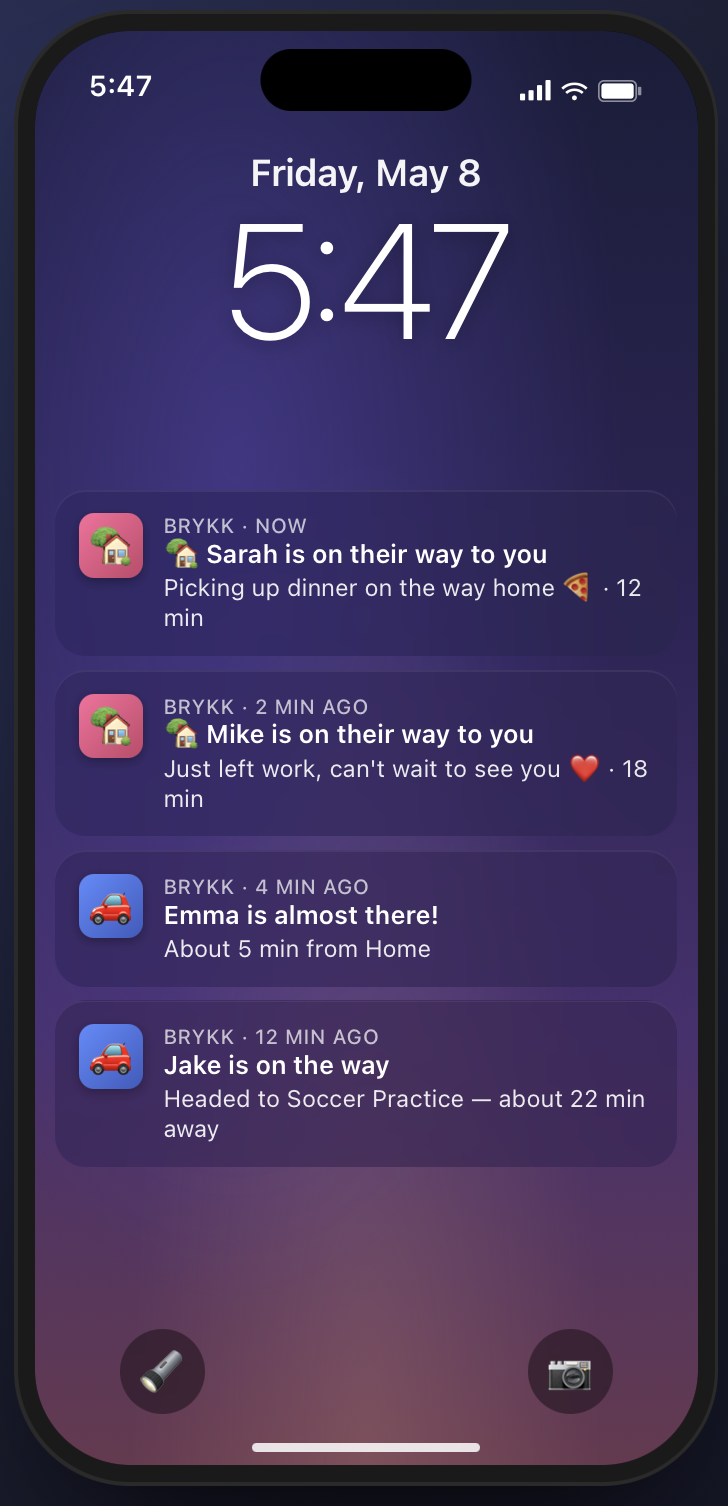
Two screenshots in one:
- Heading home (with custom message): “🏡 Sarah is on their way to you” / “Picking up dinner on the way home 🍕 · 12 min”
- Heading home (no custom message): “🏡 Sarah is on their way to you” / “Sarah is coming home — about 18 min”
- Almost there (5 min out): “Sarah is almost there!” / “About 5 min from Home”
- Arrived: “Sarah made it safely” / “Arrived at Home”