The basics
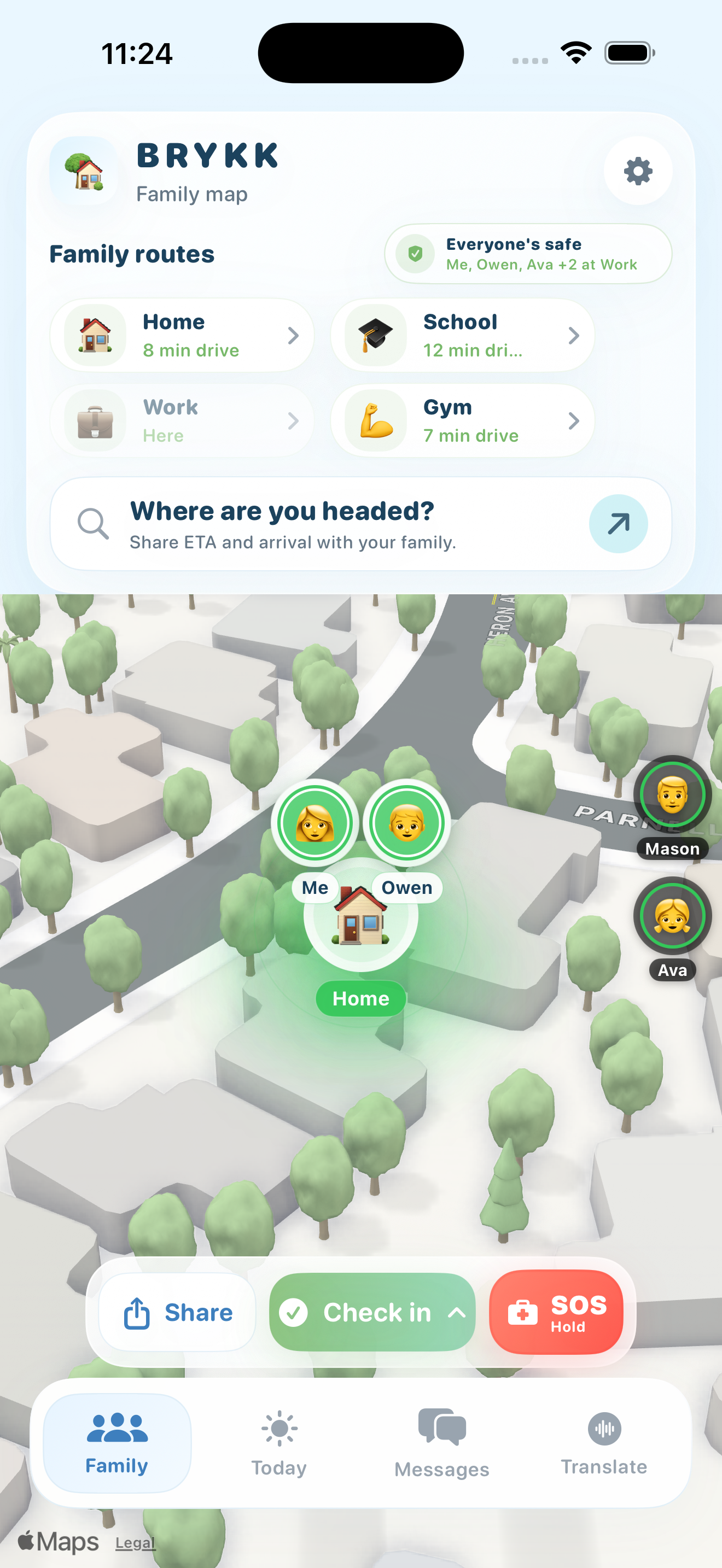
Every family member appears on the map as a small avatar. The avatar shows their photo (or emoji), and a colored ring around it tells you their status at a glance.
- Green ring — at a saved place (Home, Work, School)
- Blue ring — actively driving
- Amber ring — stationary but not at a saved place
- Red ring — SOS active. Drop everything and call them.
- Gray ring — last-known location is stale (no update in 5+ minutes)
Habitat bubbles — when family is at a saved place
When one or more family members are settled at a saved place, BRYKK shows a soft green habitat bubble around the place. The avatars fan out inside the bubble so you can see everyone individually instead of one stack.
- Solo at home — single big avatar, hero size. Looks like “one person home, alone.”
- 2 at home — side-by-side
- 3-5 at home — small ring around the place center
- 6-8 at home — tighter ring
- 9+ at home — collapses to a cluster pin with a “+N” badge. Tap it to see everyone in a list.
The 🏡 place name sits at the bottom edge of the bubble. The people are the focus — the place is the frame.
Active drivers
When a family member is driving, their pin gets a bright blue ring, a speed badge (e.g. 32 mph), and a proximity pulse animation if they have a destination set. As they get closer to their destination, the pulse speeds up and turns green.
Tap any driving pin to see their full trip details — current speed, ETA, distance covered, and the destination they're headed to.
Off-screen status indicators
When you're zoomed in, family members outside the camera view appear as circles on the right edge. Their ring color tells you their status instantly — no scrolling needed.
- Green ring — safe at a saved place
- Blue ring — out somewhere, not at a saved place
- Red ring — SOS active
- Car badge + speed — actively driving (shows speed in mph)
If you've customized a saved place with a ring color (BRYKK Life), the indicator matches — purple for School, orange for Gym, whatever you set.
Bubble size
In Settings → Preferences, you can choose Small, Medium, or Large bubbles. Larger bubbles are easier to see and tap — especially on bigger screens or for family members who want a clearer view.
Top status banner
The banner only appears when something needs attention — active trips or an SOS alert. When everyone is safe, the banner hides and the ring colors on the edge indicators tell the story.
Tap and drag
Pinch to zoom, drag to pan. Tap an avatar to see their detail sheet. Tap the “recenter” button on the right to fit everyone back into view. Tap the share button on the left to send a temporary location share link to a non-BRYKK user.