Step 1 — Install BRYKK
Download from the App Store
Open BRYKK
Allow notifications and location
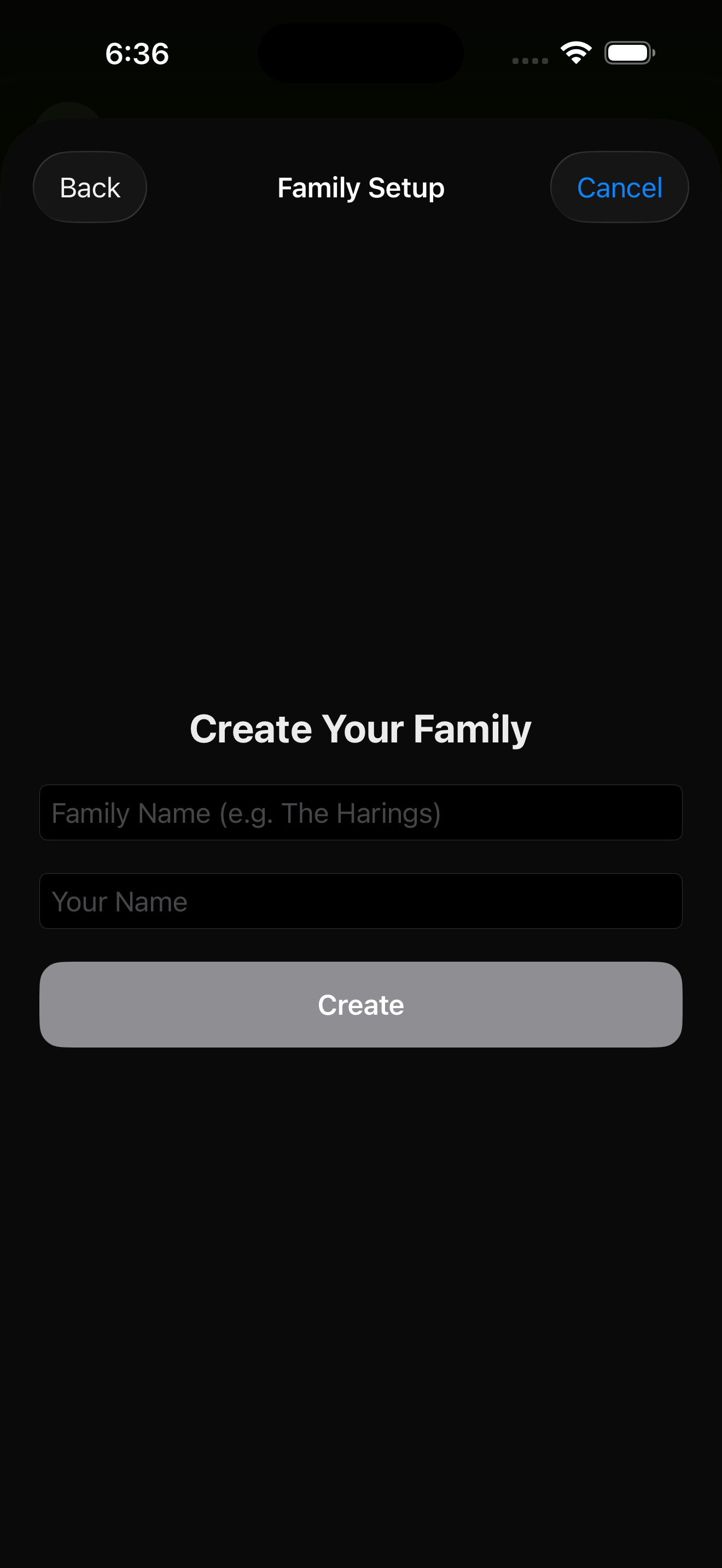
Step 2 — Create or join a family
BRYKK is built around a single family code — a short code like OAK12 that links everyone in your family together. One person creates it, everyone else joins with it.
Create a new family (you're the first one in)
Or join an existing family
oak 12 and BRYKK will figure it out.Step 3 — Add your photo and emoji
The map shows tiny avatars for every family member. By default you get a generic placeholder — upload a photo so your family can recognize you instantly. Tap your profile in Settings, tap your avatar, and pick a photo from your library.
You can also pick an emoji as your fallback — kids love picking 🦄 or 🐉.
Step 4 — Save your first place
BRYKK gets smart once it knows where Home is. From the main map, tap the Settings ⚙️ icon → Family → Places & Trips → + Add Place. Pick “Home,” then either tap Use Current Location if you're at home or search for the address.
Set the scope:
- Family Place — everyone in your family sees it. Pick this for Home, Work, School, Grandma's.
- My Place — only on your devices. Pick this for personal spots like the gym or therapist.
What's next
You're set up. The next 30 seconds you should spend:
- Read Family Map to learn what every avatar and color means
- Read Coming Home Alerts to set up your custom welcome message
- Read Notifications to pick which alerts you actually want